Setup: Difference between revisions

From Mobile Application Design
Jump to navigationJump to search
No edit summary
 
No edit summary
 
(39 intermediate revisions by 21 users not shown)
Line 1: Line 1:
== Setting up your environment ==
== "Just the tools please" Quick Setup ==
* See [[Java_Setup_Notes]] for more verbose instructions.
=== Windows (recommended) ===
# Download and install Java SE, Development Kit (JDK) - http://java.sun.com/j2se/downloads/index.html. Get the version without any other bundled software.
# Download and install Java ME, Wireless Toolkit (WTK) - http://java.sun.com/products/j2mewtoolkit/. Install this into '''C:\WTK\'''.
# [http://uberthings.com/teaching/wiki/index.php?title=Java_Setup_Notes#Paths Setup and test your paths]
# Download one or more emulators / manufacturer SDKs - [http://forum.nokia.com/info/sw.nokia.com/id/6e772b17-604b-4081-999c-31f1f0dc2dbb/S60_Platform_SDKs_for_Symbian_OS_for_Java.html Nokia] | [http://developer.motorola.com/products/handsets/ Motorola] | [http://developer.sonyericsson.com/site/global/docstools/java/p_java.jsp?cc=gb&lc=en&ver=4000&template=ps3&zone=ps SonyEricsson] | [http://developer.danger.com/site/home Danger]
# Download an IDE + development pack - [http://eclipse.org Eclipse] & [http://eclipseme.org EclipseME] | Alt choice: [http://www.netbeans.info/downloads/index.php Netbeans + Mobility Pack]
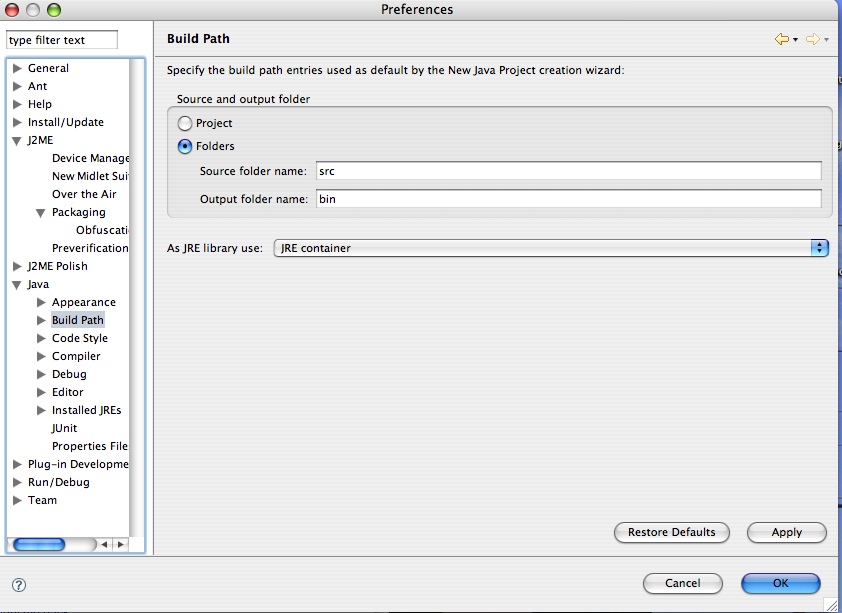
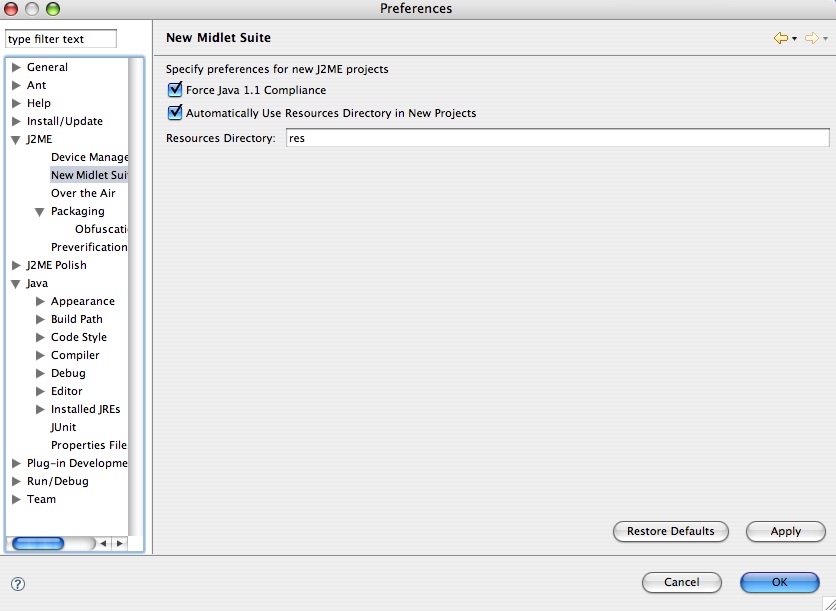
# Setup Eclipse so that [http://uberthings.com/teaching/mobile_application_design/i/java_build_path.jpg source files -> /src] folder and [http://uberthings.com/teaching/mobile_application_design/i/j2me_setup.jpg external files (images, txt files etc) -> /res] folder
# Instructions for [http://eclipseme.org/docs/installEclipseME.html Installing] and [http://eclipseme.org/docs/configuring.html Configuring] EclipseME


Having a good environment setup is essential for everything you will be doing with Java ME - writing, compiling, packaging, debugging, obfuscating, tearing your hair out etc etc. Use the instructions here to setup your environment on Windows or OS X (currently experimental).  
=== Mac OS X ===
* Please note, I've been using OS X as a quick prototyping platform, but have run into some issues with MIDlets that work perfectly in the emulator, but then do not run on the device. After compiling the same code on an identical Windows machine, it works perfectly on the device. Convenience comes with a price. Develop at your own risk!


<h2>Java + Wireless Toolkit</h2>
# Download [http://www.mpowerplayer.com/products-sdk.php MPowerPlayer (OS X only)]
#Java Standard Edition Development Kit (JDK) - you need to have some version of Java installed on your machine. Try to get version 1.4.2 (or later). This is essential for development. NOTE: You MUST have the JDK installed before you install the Java Wireless Toolkit as you will need the tools it contains (such as javac) to compile and run your MIDlets.
# [http://uberthings.com/teaching/wiki/index.php?title=Java_Setup_Notes#MPowerplayer_MIDP_2.0_SDK Configure MPowerplayer]
#Download it here: http://java.sun.com/j2se/downloads/index.html. Get the version without any other bundled software. It should be called something like JDK 5.0 Update 8.
# Download an IDE + development pack - [http://eclipse.org Eclipse] & [http://eclipseme.org EclipseME] | Alt choice: [http://www.netbeans.info/downloads/index.php Netbeans + Mobility Pack]
#Java ME, Wireless Toolkit (WTK). This contains the essential tools that we need to build, package and install mobile applications. Download it here: http://java.sun.com/products/j2mewtoolkit/. Get the [J2ME Wireless Toolkit 2.2 http://java.sun.com/products/sjwtoolkit/download-2_2.html], or if you feel living on the bleeding edge - grab the Sun [Java Wireless Toolkit 2.5 for CLDC, Beta http://java.sun.com/products/sjwtoolkit/download-2_5.html](the toolkit formerly known as J2ME Wireless Toolkit). Careful, you may cut yourself.
# Setup Eclipse so that [http://uberthings.com/teaching/mobile_application_design/i/java_build_path.jpg source files -> /src] folder and [http://uberthings.com/teaching/mobile_application_design/i/j2me_setup.jpg external files (images, txt files etc) -> /res] folder
#I'm going to assume that you will install this into the <pre>C:\WTK\</pre> directory - if you install it somewhere else, just modify the paths accordingly.
# Instructions for [http://eclipseme.org/docs/installEclipseME.html Installing] and [http://eclipseme.org/docs/configuring.html Configuring] EclipseME
 
<h2>Paths</h2>
To play nicely with the grown-ups, Java needs to know where all your files are, so we need to add the location of the Java binaries to the system path.
 
<h3>Windows 95/98</h3>
Go to Start->Run. Type in <em>command</em>. Then type
 
<pre>SET PATH=%PATH%;C:\WTK\bin</pre>
 
You should also edit your C:\autoexec.bat file to include this line, so you don't have to enter it every single time you restart your computer. After you've done this, you should be able to run the tools included in the Java Wireless Toolkit from any directory on your system.
 
<h3>Windows 2000/XP</h3>
#Go to Control Panel -> System.
#Click on the Advanced Tab
#Click on the Environment Variables button
#Double-click the PATH variable in the System variables box
#At the end of the <em>Variable value</em> field, add the path to your J2ME WTK installation - for me this is something like <em>;C:\WTK</em>
#If you had to install the J2SE SDK too, it's a good idea to add the paths for that as well - for me this was <em>C:\j2sdk1.4.2_03;C:\j2sdk1.4.2_03\bin</em>.
  <p>A good way to test if this worked is to type the preverify command without any arguments in the command line. You should see something like this on your screen. </p>
<pre>
C:\> preverify<br />
Usage: PREVERIFY.EXE [options] classnames|dirnames ...<br />
<br />
where options include:<br />
  -classpath <directories separated by ';'><br />
                  Directories in which to look for classes<br />
  -d <directory> Directory in which output is written <br />
  @<filename>    Read command line arguments from a text file.<br />
</pre>
 
<h2>Emulators</h2>
 
<h3>Windows</h3>
Depending on your target device, you should download and install the SDK for that particular handset or family of handsets from the manufacturer's site. Since this course is based around the Nokia Series 60 handsets, we're going to grab the Nokia Series 60 2nd Edition SDK, Feature Pack 2 and 3 as well as the Nokia Series 60 3rd Edition SDK (for the N80). You'll also need to get serial numbers for these SDKs, so don't forget to request those as well.
Download them from here:
 
[http://www.forum.nokia.com/info/sw.nokia.com/id/6e772b17-604b-4081-999c-31f1f0dc2dbb/S60_Platform_SDKs_for_Symbian_OS_for_Java.html Series 60 SDKs]  
 
<h3>Mac OS X</h3>
None of the manufacturers have bothered to port their SDKs for the Mac, and neither has Sun, but there is a way to develop MIDP 1.0 and 2.0 applications using Michael Power's Mpowerplayer SDK and J2ME Polish. Get them while they're hot:
 
[http://www.mpowerplayer.com/products-sdk.php MPowerplayer SDK]
 
[http://j2mepolish.org/downloads/j2mepolish-2.0-beta1.html J2ME Polish]
 
<h2>IDE's</h2>
<h3>Eclipse</h3>
 
[http://eclipse.org Eclipse] is a fantastic open source Java Integrated Development Environment (IDE) which has a few sweet J2ME plugins. The one I use the most is called [http://eclipseme.org EclipseME].
 
#Download Eclipse from http://www.eclipse.org/downloads/. Install it somewhere easy - like C:\eclipse
#Configuring and install EclipseME using the excellent installation and configuration instructions [http://eclipseme.org/docs/installEclipseME.html here] to guide you through this process.
#Once you're done - we're ready to start coding! Yeah!
 
<h3>Netbeans</h3>
Download Netbeans from Sun here - http://www.netbeans.org/. I don't use it much, but I've heard good things. Let me know how it treats you.
 
<h3>Mobile.Processing</h3>
 
[http://mobile.processing.org/ Mobile.Processing] is an open source programming environment for people who want to design and prototype software for mobile phones. It is based on and shares the same design goals as the open source [http://processing.org Processing ] project. Sketches programmed using Mobile Processing run on Java Powered mobile devices. Mobile.Processing is extremely easy to get up and running with, but has some drawbacks which will prevent us from using it.
 
Mobile.Processing is available for both Windows and Mac OS X. Download it [http://mobile.processing.org/download/index.php here].

Latest revision as of 15:06, 10 September 2007

"Just the tools please" Quick Setup

Windows (recommended)

  1. Download and install Java SE, Development Kit (JDK) - http://java.sun.com/j2se/downloads/index.html. Get the version without any other bundled software.
  2. Download and install Java ME, Wireless Toolkit (WTK) - http://java.sun.com/products/j2mewtoolkit/. Install this into C:\WTK\.
  3. Setup and test your paths
  4. Download one or more emulators / manufacturer SDKs - Nokia | Motorola | SonyEricsson | Danger
  5. Download an IDE + development pack - Eclipse & EclipseME | Alt choice: Netbeans + Mobility Pack
  6. Setup Eclipse so that source files -> /src folder and external files (images, txt files etc) -> /res folder
  7. Instructions for Installing and Configuring EclipseME

Mac OS X

  • Please note, I've been using OS X as a quick prototyping platform, but have run into some issues with MIDlets that work perfectly in the emulator, but then do not run on the device. After compiling the same code on an identical Windows machine, it works perfectly on the device. Convenience comes with a price. Develop at your own risk!
  1. Download MPowerPlayer (OS X only)
  2. Configure MPowerplayer
  3. Download an IDE + development pack - Eclipse & EclipseME | Alt choice: Netbeans + Mobility Pack
  4. Setup Eclipse so that source files -> /src folder and external files (images, txt files etc) -> /res folder
  5. Instructions for Installing and Configuring EclipseME