Week 2: Forms-A-Go-Go: Difference between revisions
From Mobile Application Design
Jump to navigationJump to search
No edit summary |
No edit summary |
||
| (8 intermediate revisions by 4 users not shown) | |||
| Line 1: | Line 1: | ||
== Setup for Eclipse users == | == Setup for Eclipse users == | ||
# Download the [http://uberthings.com/teaching/mobile_application_design/2 | # Download the [http://uberthings.com/teaching/mobile_application_design/2/Forms-A-Go-Go.zip Forms-A-Go-Go] files and unzip them to somewhere in your filesystem | ||
# Copy the entire Forms-A-Go-Go folder into your Eclipse workspace | # Copy the entire Forms-A-Go-Go folder into your Eclipse workspace | ||
# Create a new J2ME Project called - Forms-A-Go-Go. I like to use the Nokia S60 emulator - but you can use anything you like. | # Create a new J2ME Project called - Forms-A-Go-Go. I like to use the Nokia S60 emulator - but you can use anything you like. | ||
| Line 9: | Line 9: | ||
# Run the MIDlet | # Run the MIDlet | ||
Don't forget to read through the source code to see how everything works | Don't forget to read through the source code to see how everything works | ||
Latest revision as of 07:18, 12 September 2007
Setup for Eclipse users
- Download the Forms-A-Go-Go files and unzip them to somewhere in your filesystem
- Copy the entire Forms-A-Go-Go folder into your Eclipse workspace
- Create a new J2ME Project called - Forms-A-Go-Go. I like to use the Nokia S60 emulator - but you can use anything you like.
- Eclipse should automatically find all the files that we added if you spelled everything correctly
- Create a configuration to run your Midlet by right-clicking the project name, selecting Run as, Run...
- Make it look something like this -
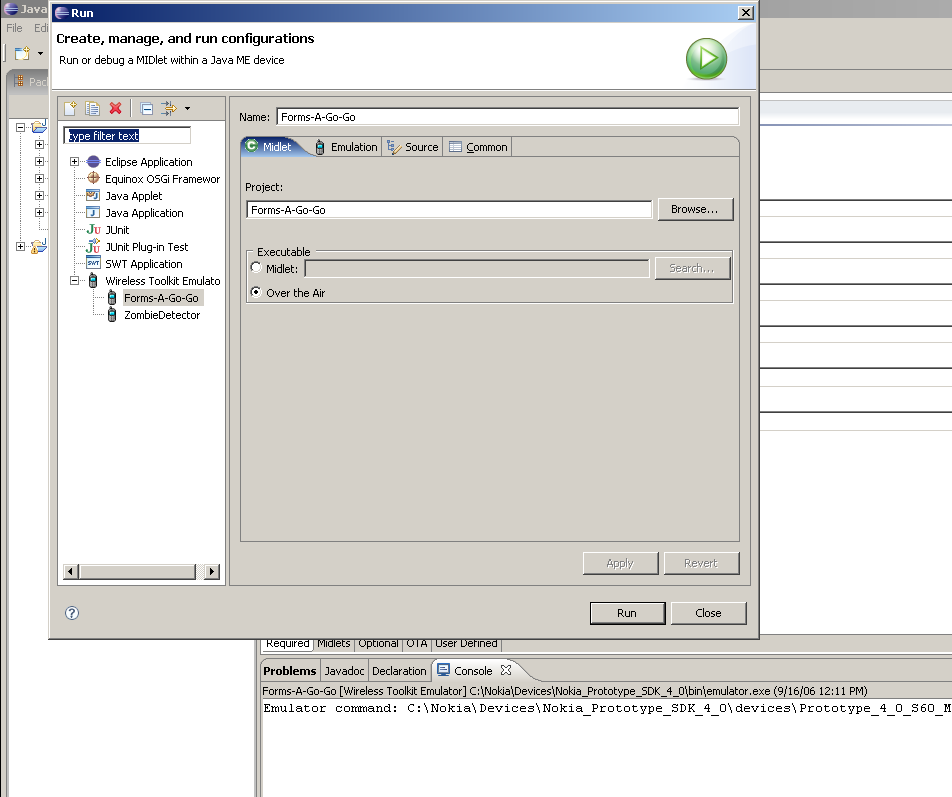
- Run the MIDlet
Don't forget to read through the source code to see how everything works

