ZombieDetector: Difference between revisions
From Mobile Application Design
Jump to navigationJump to search
No edit summary |
No edit summary |
||
| Line 115: | Line 115: | ||
String word = mSubmitField.getString(); | String word = mSubmitField.getString(); | ||
//System.out.println is useful for debugging and sending things to the console. | //System.out.println is useful for debugging and sending things to the console. | ||
System.out.println("Got the String - " | System.out.println("Got the String - " word); | ||
String result; | String result; | ||
Revision as of 08:13, 10 April 2007
Overview
Setup
- Create a new J2ME Midlet Suite in Eclipse by right-clicking in the Package Manager, selecting New -> Project -> J2ME Midlet Suite
- Call this ZombieDetector. Leave everything else as is.
- Right-click on your ZombieDetector project and select New -> Class
- Use src as your package and ZombieDetector as the class name. Click Finish.
- Open your new ZombieDetector class
- Cut and paste the code from below into your file. Save.
- Open up the ZombieDetector.jad file
- Click on the Midlets tab. Click Add.
- Write in ZombieDetector as the MIDlet name.
- Click in the button that appears in class. You may have to start typing Zombie in. It should find your class automatically. If nothing happens, try closing all the files down and opening them again.
- Right-click your project again, select Run As, then Run...
- Setup so that it looks something like this -
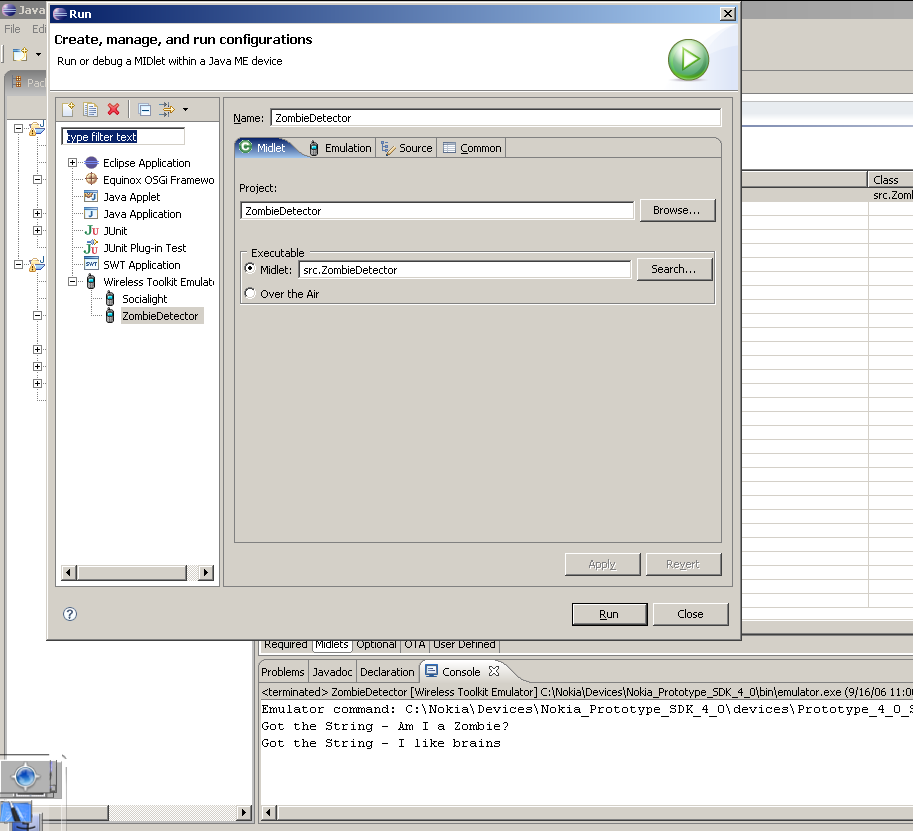
- Run your MIDlet
import javax.microedition.midlet.*;
import javax.microedition.lcdui.*;

/**
 * Zombie Detector
 * @author Michael Sharon
 *
 * This program will allow a user to type in a sentence and detect if they are a zombie or not.
 *
 * Notice that we're implementing the CommandListener and Runnable. Read up on those two classes in the API docs.
 * Runnable - http://uberthings.com/mobile/docs/midp1/java/lang/Runnable.html
 * CommandListenter - http://uberthings.com/mobile/docs/midp1/javax/microedition/lcdui/CommandListener.html
 */
public class ZombieDetector extends MIDlet implements CommandListener, Runnable {

	//Create our variables

	//Every MIDlet will always contain exactly one Display object
	//Display represents the device's display manager and input devices
	private Display mDisplay;

	private Command mExitCommand, mDetectCommand, mCancelCommand;

	//Setting up the Textbox and Progress Forms (like the example in class)
	private TextBox mSubmitBox;

	private Form mProgressForm;

	private StringItem mProgressString;

	//Field / Form style
	private TextField mSubmitField;

	private Form mDetectionForm;

	public ZombieDetector() {
		mExitCommand = new Command("Exit", Command.EXIT, 0);
		mDetectCommand = new Command("Detect", Command.SCREEN, 0);

		mSubmitBox = new TextBox("ZombieDetector", "Am I a Zombie?", 32, 0);
		mSubmitBox.addCommand(mExitCommand);
		mSubmitBox.addCommand(mDetectCommand);
		mSubmitBox.setCommandListener(this);

		mSubmitField = new TextField(
				"Type a few words below to check if you are a zombie:",
				"I am not a zombie.. honest..", 32, 0);
		mDetectionForm = new Form("Zombie Detector");
		mDetectionForm.addCommand(mExitCommand);
		mDetectionForm.addCommand(mDetectCommand);
		mDetectionForm.append(mSubmitField);
		mDetectionForm.setCommandListener(this);

		mProgressForm = new Form("Lookup progress");
		mProgressString = new StringItem(null, null);
		mProgressForm.append(mProgressString);
	}

	public void startApp() {
		mDisplay = Display.getDisplay(this);

		//uncomment the mSubmitbox line below to run it like the example in class
		//mDisplay.setCurrent(mSubmitBox);
		mDisplay.setCurrent(mDetectionForm);

	}

	public void pauseApp() {
	}

	public void destroyApp(boolean unconditional) {
	}

	//This is called whenever we select a command
	public void commandAction(Command c, Displayable s) {
		if (c == mExitCommand) {
			destroyApp(false);
			notifyDestroyed();
		} else if (c == mDetectCommand) {
			// Show the progress form.
			mDisplay.setCurrent(mProgressForm);
			// Kick off the thread to do the query.
			Thread t = new Thread(this);
			t.start();
		}
	}

	/*
	 * The run() method is automatically called when a new Thread is started.
	 *
	 */
	public void run() {

		//uncomment the line below if you want use the TextBox
		//String word = mSubmitBox.getString();
		String word = mSubmitField.getString();
		//System.out.println is useful for debugging and sending things to the console.
		System.out.println("Got the String - "   word);
		String result;

		result = checkForZombie(word);

		//Place the result into an Alert
		Alert results = new Alert("Result", result, null, null);
		results.setTimeout(Alert.FOREVER);

		//Display the Alert, followed by the next Displayable - in this case our Form or Textbox
		//Uncomment the line below to use the Textbox
		//mDisplay.setCurrent(results, mSubmitBox);
		mDisplay.setCurrent(results, mDetectionForm);
	}

	private String checkForZombie(String word) {
		String isZombie = null;
		int zombieCheck = 0;

		//Check if we're dealing with a zombie
		zombieCheck = word.indexOf("brain");

		if (zombieCheck == -1) {
			isZombie = "This is a live one. No zombies here.";
		} else {
			isZombie = "Eeek! Run for your lives!";
		}

		return isZombie;
	}
}
