Java Setup Notes
Java + Wireless Toolkit
- Java Standard Edition Development Kit (JDK) - you need to have some version of Java installed on your machine. Try to get version 1.4.2 (or later). This is essential for development. NOTE: You MUST have the JDK installed before you install the Java Wireless Toolkit as you will need the tools it contains (such as javac) to compile and run your MIDlets.
- Download it here: http://java.sun.com/j2se/downloads/index.html. Get the version without any other bundled software. It should be called something like JDK 5.0 Update 8.
- Java ME, Wireless Toolkit (WTK). This contains the essential tools that we need to build, package and install mobile applications. Download it here: http://java.sun.com/products/j2mewtoolkit/. Get the [J2ME Wireless Toolkit 2.2 http://java.sun.com/products/sjwtoolkit/download-2_2.html], or if you feel living on the bleeding edge - grab the Sun [Java Wireless Toolkit 2.5 for CLDC, Beta http://java.sun.com/products/sjwtoolkit/download-2_5.html](the toolkit formerly known as J2ME Wireless Toolkit). Careful, you may cut yourself.
- I'm going to assume that you will install this into the
C:\WTK\
directory - if you install it somewhere else, just modify the paths accordingly.
Emulators
Windows
Depending on your target device, you should download and install the SDK for that particular handset or family of handsets from the manufacturer's site. Since this course is based around the Nokia Series 60 handsets, we're going to grab the Nokia Series 60 2nd Edition SDK, Feature Pack 2 and 3 as well as the Nokia Series 60 3rd Edition SDK (for the N80). You'll also need to get serial numbers for these SDKs, so don't forget to request those as well. Download them from here:
Mac OS X
None of the manufacturers have bothered to port their SDKs for the Mac, and neither has Sun, but there is a way to develop MIDP 1.0 and 2.0 applications using Apache Ant, MPowerplayer MIDP 2.0 SDK and J2ME Polish. Get 'em while they're hot:
Apache Ant
- Download Apache Ant from http://download.nextag.com/apache/ant/binaries/apache-ant-1.6.5-bin.tar.gz
- Save it somewhere easy and memorable - on my machine I save all my downloaded source files to
/Users/michael/src
- Here is the process. To try keep things clean, we're going to be installing into /usr/local.
tar -zxvf apache-ant-1.6.5-src.tar.gz
cd /usr/local
sudo mkdir ant
cd ant
sudo cp -R ~/src/apache-ant-1.6.5/bin .
sudo cp -R ~/src/apache-ant-1.6.5/lib .
- Set up the paths in your environment
pico ~/.bash_login
Add these lines somewhere
export ANT_HOME=/usr/local/ant
export JAVA_HOME=/Library/Java/Home
export PATH=${PATH}:${ANT_HOME}/bin
Shut down your shell, open it up again and type
ant

You should see something like this

Buildfile: build.xml does not exist!
Build failed
This means that Ant is installed and we're ready to roll.
MPowerplayer MIDP 2.0 SDK
- Download this from http://www.mpowerplayer.com/products-sdk.php
- Save the file somewhere in your src folder and unzip it. On my machine this looked like this:
/Users/michael/src/mobile/mpp-sdk
- [Optional] I like making shortcuts so that it's easy for me to run the application. Fire up your favourite editor and type this
java -jar /Users/michael/src/mobile/mpp/player.jar $1 &
and then save that somewhere in your path as mpp. I saved it as
/Users/michael/mpp
Then, make it executable by typing:
chmod 755 mpp
Now, all you need to do to run JAD/JAR files in the emulator is type
mpp [filename.jad/filename.jar]
Building
To build applications with J2ME Polish, Mpowerplayer and Ant, you need to do the following:
- Copy the build.xml file into your MIDlet's directory.
- Check the paths inside the build.xml file to ensure that they're pointing to the right folders for your source folders, Mpowerplayer and J2ME Polish
- Type ant. Watch the magic unfold.
IDE's
Eclipse
Eclipse is a fantastic open source Java Integrated Development Environment (IDE) which has a few sweet J2ME plugins. The one I use the most is called EclipseME. Although Eclipse is cross-platform, EclipseME doesn't work very well on OS X. OS X works nicely with EclipseME and the MPowerplayer SDK.
Windows
- Download Eclipse from http://www.eclipse.org/downloads/. Install it somewhere easy - like C:\eclipse
- Configuring and install EclipseME using the excellent installation and configuration instructions here to guide you through this process.
- Once you're done - we're ready to start coding! Yeah!
OS X
- Install EclipseME from the download site.
- Go to Window->Preferences. Select J2ME.
- When it asks you for the WTK Root - select the folder where you installed the Mpowerplayer SDK - for me it was /Users/michael/src/mobile/mpp-sdk.
- Go to Device Manager. Hit Import. Select the Mpowerplayer directory again. It will only find one emulator. Select it.
- Hit Apply. Then ok.
Initial Directory structures
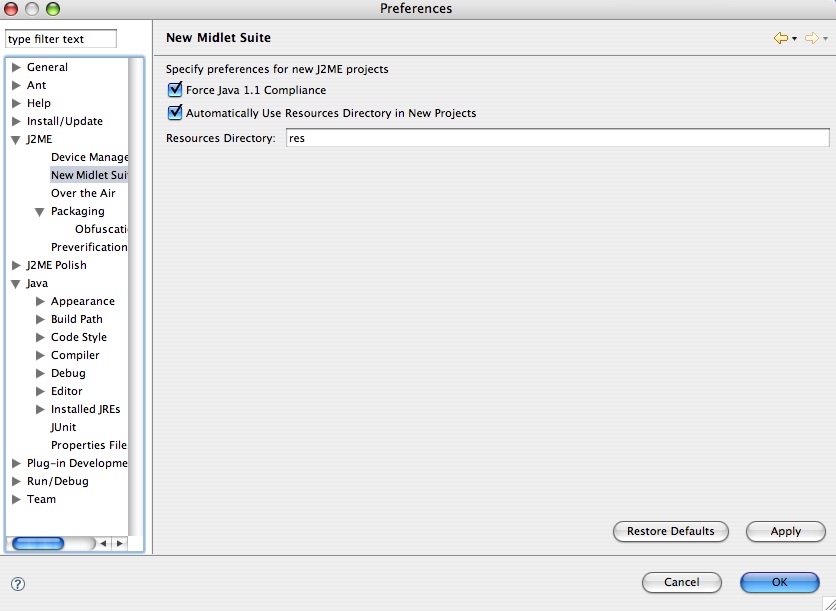
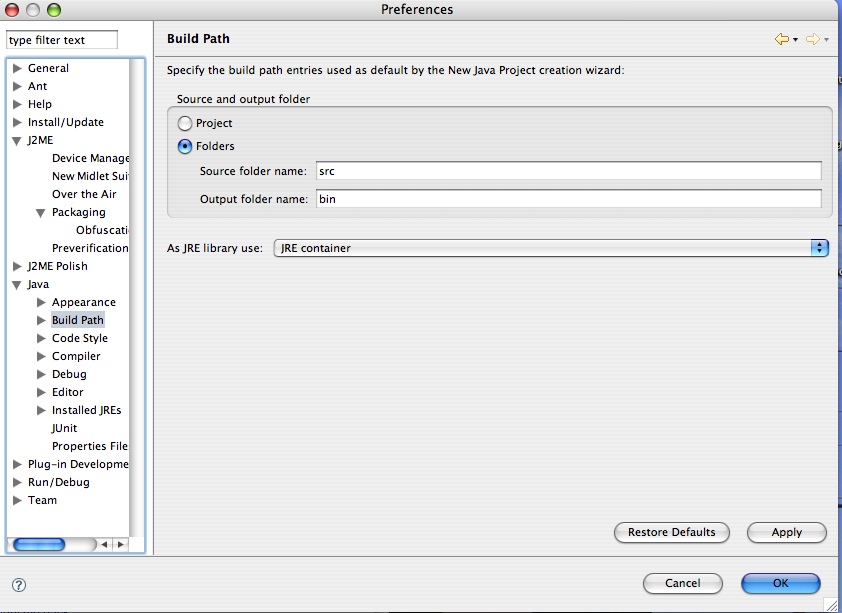
- For my projects, I like to set up my source files in the /src folders of my projects and all external files to be in /res - this is how you do it in Eclipse.
Netbeans
Download Netbeans from Sun here - http://www.netbeans.org/. I don't use it much, but I've heard good things. Let me know how it treats you.
Mobile.Processing
Mobile.Processing is an open source programming environment for people who want to design and prototype software for mobile phones. It is based on and shares the same design goals as the open source Processing project. Sketches programmed using Mobile Processing run on Java Powered mobile devices. Mobile.Processing is extremely easy to get up and running with, but has some drawbacks which will prevent us from using it.
Mobile.Processing is available for both Windows and Mac OS X. Download it here.